How to Remove Background Music from a Video
There’s music in your video and you want it gone. A song that was playing while you filmed, a backing track fighting the narration, a tune a client wants swapped out. The catch is the music and the voice are mixed into one recording, so muting or cutting the audio takes the voice with it. You need to pull the two apart.
Why turning it down doesn’t work
There aren’t two tracks to balance. There’s one waveform with both sounds baked in, and a volume fader moves all of it at once. Turn it down and the voice drops with the music. EQ can dip the frequencies where the music sits, but voices and instruments share a lot of the same range, so you end up dulling the voice while chasing the song. To keep one and lose the other, something has to separate the recording first.
What people try
Free editors and Audacity. Their noise reduction is built for steady hiss and hum, not music. Music has melody and rhythm across the whole spectrum, so a noise profile can’t catch it. You’ll knock off a little and mangle the voice.
Online music removers. Plenty of free web tools split a track into vocals and instrumental. They work to a point, but you upload your file to someone’s server, quality is hit or miss, and most cap length or charge for anything useful.
iZotope RX and pro plugins. They do real separation and do it well, but RX is $400+ and a lot of tool to learn for a problem you hit now and then.
Removing the music with AI
This is a source-separation job. The model is trained to tell music from voice and split them, so you can drop one and keep the other.
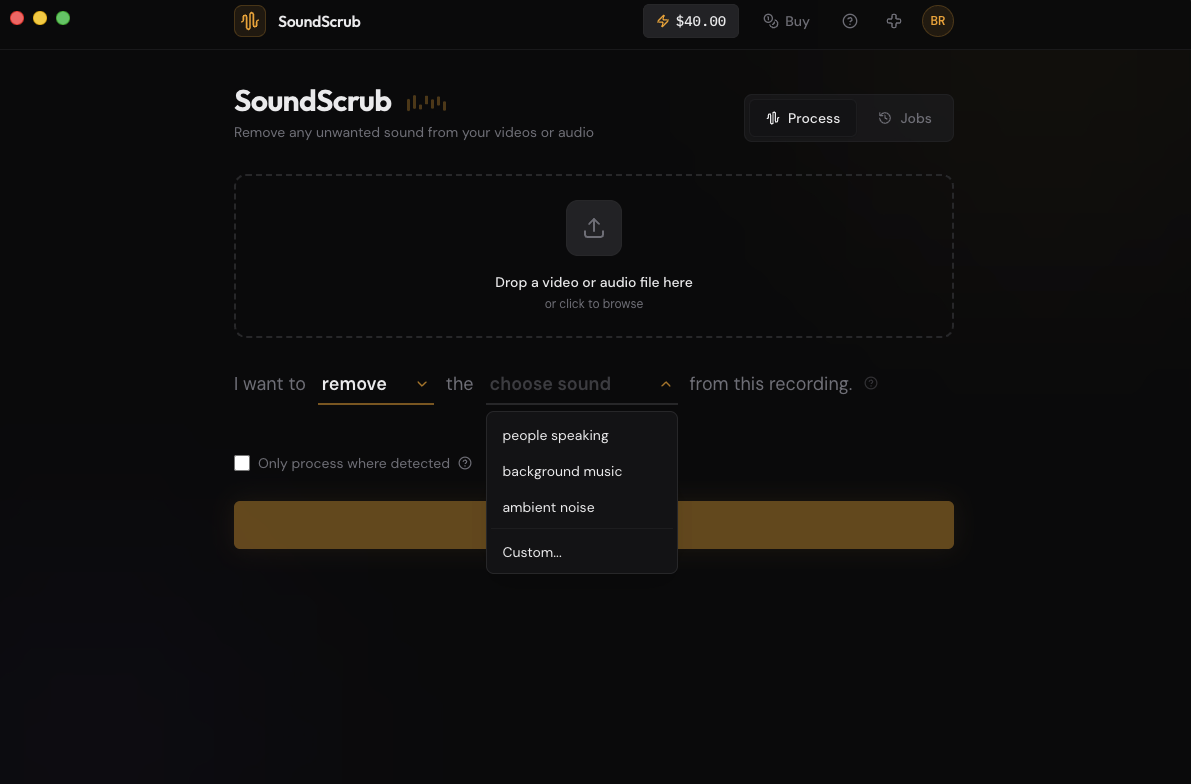
SoundScrub is a desktop app that does this. You drag a video or audio file onto it, hit Remove, pick “background music”, and it hands the file back with the music gone and the voice intact. If the voice is the easier thing to describe, flip it: pick Keep, select “people speaking”, and it isolates the voice and drops the rest.
It isn’t limited to music. Name a sound effect, a single instrument, an alarm going off, and it targets that instead. You pay $0.25 per 30 seconds, no subscription.
If you work in a specific editor
The round trip is the same everywhere: pull the clip out, clean it, bring it back. If you want the exact steps for yours, there are guides for DaVinci Resolve and Premiere Pro. If the music is copyrighted and you’re fighting a Content ID claim, here’s that case.
The steps
Export the clip as a video from your editor. Drop it into SoundScrub and you get the same video back with the music gone and the rest of the audio left alone. Reimport it and drop it on your timeline in place of the original. The audio is already swapped in, so there’s no track to mute by hand, and the quality matches what you exported.