How to Remove Background Noise in DaVinci Resolve
You’ve got a clip in Resolve with noise under the dialogue. An air conditioner, traffic through a window, a fridge humming in the next room. Resolve has a few ways at this, and they’re not equal.
What Resolve gives you
Voice Isolation is the strong one. It’s AI, it pulls the voice out from under noise, and it works well. Two catches: it’s Studio-only, so the free version doesn’t have it and you’d pay $295 to upgrade, and it keeps the voice while dropping everything else, so it’s one-directional.
Dialogue Leveler is in free Resolve, but it doesn’t remove noise. It raises the dialogue and lowers the background so the voice sits clearer. The noise is still there, quieter.
Fairlight’s Noise Reduction handles steady hiss and hum. You sample a quiet section so it learns the noise, then it subtracts that profile. It’s good for constant noise and weak on anything that changes, a passing car, a crowd, gusts of wind.
So if you’re on Studio and the noise is fairly steady, Voice Isolation or Noise Reduction will get you most of the way. If you’re on free Resolve, or the noise keeps shifting, you hit a wall.
Where SoundScrub comes in
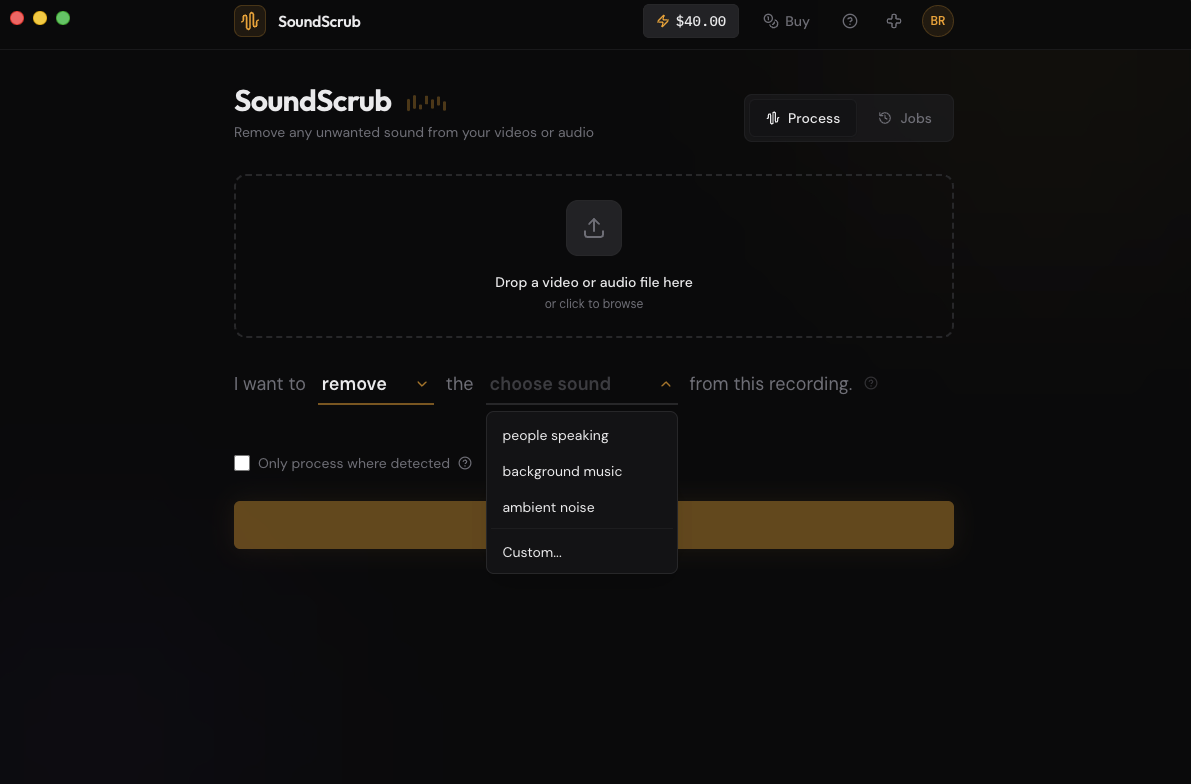
SoundScrub is its own desktop app, not a plugin. You drag a video or audio file onto it, name the sound, and it gives you the file back with that sound gone and the rest intact. It covers two cases Resolve’s built-ins leave open.
The first is free Resolve. No Voice Isolation, no $295. You drag the clip in, hit Remove, name the noise (“ambient noise”, “traffic”, “dog barking”), and get it back clean.
The second is noise that won’t hold still. Resolve’s Noise Reduction wants a steady profile, so it struggles with a bus going by or chatter that comes and goes. SoundScrub targets the sound by name instead of by profile, so it holds up when the noise keeps changing. You can also flip to Keep and pick “people speaking” to save the voice and drop the rest.
No plugin to install. It’s $0.25 per 30 seconds, no subscription.
The round trip
Render the clip as a video from the Deliver page, or use Quick Export. Drop it into SoundScrub and you get the same video back with the noise gone. Reimport it through the Media page and drop it in place of the original clip. The audio is already swapped in, so there’s nothing to mute by hand, and the quality matches what you rendered.